
The Password for everything is PineWood12!@

Pinewood Mission Support Center (MSC) Information
Lab Mailing Address:
Nextech Solutions [RIPS]
ATTN: Sean Matthews/Val Cornejo
6701 South Dale Mabry Hwy
Tampa FL 33611
Welcome to the RIPS PAAS Portal. This is the front door for Pinewood Mission Support Center services — research and development, logistics, and operational support.
If you need to see details on any PAAS support tasks that are not covered below, you can go to the main Airtable Dashboard.
If you do not have a login for Airtable, use:
Username: [email protected]
Password: PineWood12!@
Any user can use this login to access the Airtable mobile app for quick and easy status updates on PAAS Tasks.
🤖 Research & Innovation Platform Support (RIPS) POC
🤖 Sean Matthews
Technical Program Manager
Email: [email protected]
Phone: 813-370-1979
Signal: @Sean18.33
Please also CC our organizational email on all requests: Email: [email protected]

🧠 Need Help Printing Something on Paper?
This is a foolproof printing solution for all users to be able to print to the printer in room 102T (Operations).
🖨️ Click Here to Print 🖨️💰 Purchase Request
To submit a purchase request, use the one-page desk (list + Grok URL lookup + submit):
Legacy Airtable form is still available if you need it:
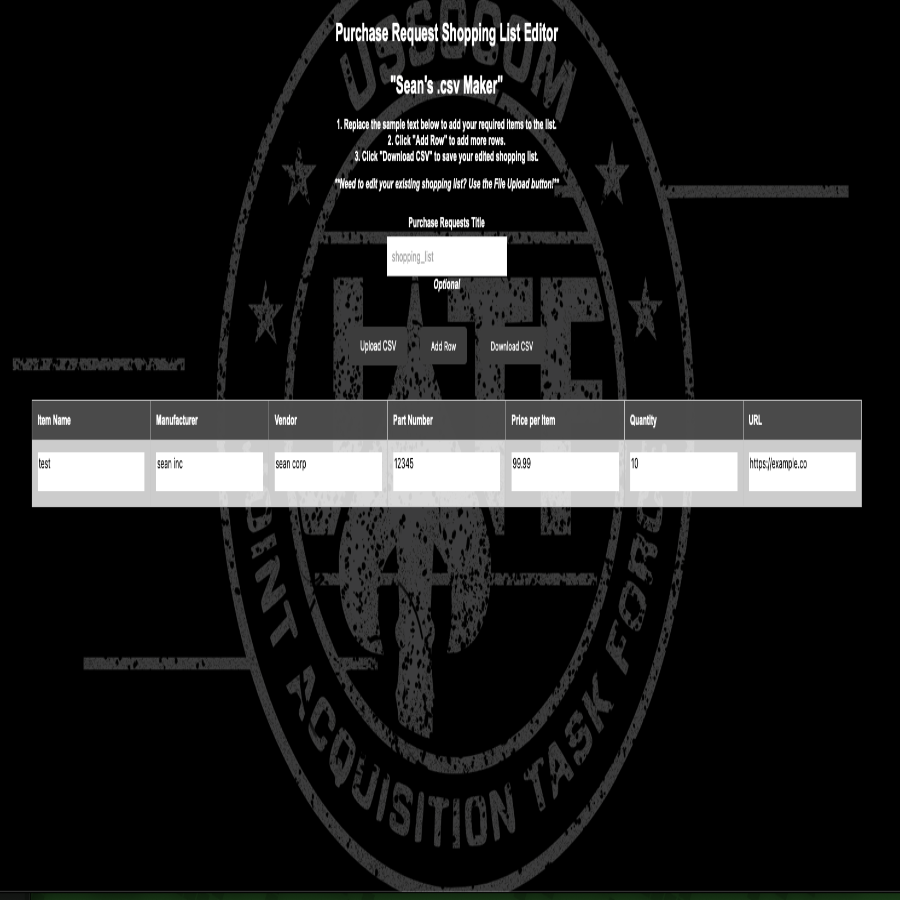
If you are a Linux nerd ... I mean do not have Microsoft Excell or want to just make your shopping list without Excel, use this "Shopping List Editor" tool.👇
💼 Business Card Orders
Need a personalized business card? Use this section to request official business cards. Please allow a 4–5 day lead time for processing and note that orders are typically completed in batches to ensure efficiency. Use the form below to submit your request and track the status of your order in real time.
To submit a request, use the one-page desk (no Airtable form):
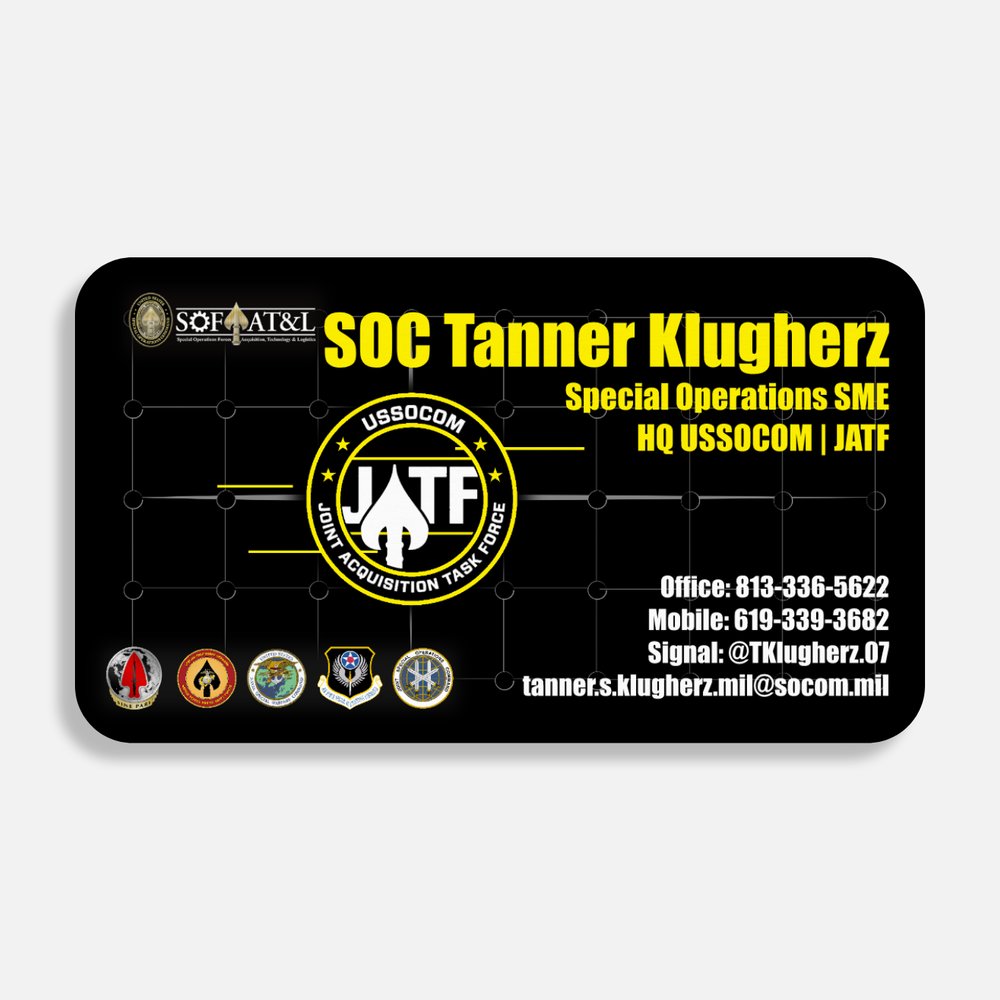
Front Design
Back Design
📬 Shipping Request
For shipping requests, including obtaining cost estimates, use the following link:
🏗️ Other Support Request
For other support requests that are not listed here, please use this general support form or contact a POC above for more information.
🪪 Badge Status and Request
If you need a badge for access to the facility, please use the following form to submit a request:
- This is only for individuals who work at Pinewood or Ybor several days a week.
- Exceptions must be approved by the JATF SEA
- You will receive an automated email when you are within 30, 15, and 0 days of expiration.
- A VAR from your organization and additional documentation may be needed based on level of access.
- Complete the top portion of the below badge reqest form then emial it to [email protected] Sean Matthews will submit it and privde an updated access contorl roster to the JATF COR/AOR for apporval
For weekend or holiday access let Sean know 48 houres ahead of time. The contracted secuirty will not know who you are.
👽 Visitor Instructions
All visitors are required to follow specific security guidelines when visiting the Pinewood Mission Support Center. Please ensure that your visitor request is submitted well in advance.
These forms are managed by the NTS FSO team, so please ensure you inform a RIPS team member about submissions to ensure your request is handled in a timely fashion.
Uncleared Visits
Visits that do not involve classified materials simply require an email to [email protected] with the list of names and "5Ws" for the event.
- Foreign Visitor Request Form: https://forms.office.com/pages/responsepage.aspx
Classified Visits
One week prior to the date access is needed, individuals possessing a U.S. Government clearance must send their information via DISS. If the individual’s clearance is not in DISS, a FAX on company letterhead will be accepted. If your SSO needs more information, contact the NTS FSO team at [email protected].
The following documents must be compiled at least seven working days prior for DCSA submission:
Important Notes:
- If Secret material is being displayed, it must be accompanied by an ATP plan within the meeting security agreement.
- There is no SIPR connectivity in the meeting rooms, which can also be used for unclassified events.
- NTS does not provide or support SIPR laptops under any circumstances.
- For events, the Meeting Access List must be submitted to the applicable SSO, who will submit the bulk VAR.
- NTS cannot validate individual VARs for large events.
- VARs must be submitted at least one working day before the event or the visitor will not be allowed to attend.
- DCSA and SOCOM Industrial Security control access to secure spaces — not NTS.
Submit the following information in DISS:
- SMO: 6XKD0
- Email: [email protected]
- Technical POC: Sean Matthews
- POC Phone: 813.566.1402
- Fax Number: 813.448.1488
⚠️ Foreign Visitors: Must be approved by the SOCOM Foreign Disclosure Office (FDO). Approval must be confirmed by email from [email protected] at least 48 hours before the event. NTS does not control this process. Visitors not listed will be denied access.
The RIPS team cannot approve or validate Visit Access Requests (VARs) that are submitted using the JATF POC information — including Sean Matthews — for events that are not affiliated with JATF.
If VARs are received and no prior coordination has been made with Sean, they will not be approved.
Please ensure all visitors are properly informed and do not use this contact information for unrelated events or non-JATF activities.
## 🏢 Conference Space Reservations or Event Support Request
To book conference space at the Pinewood Mission Support Center or Ybor, please fill out the reservation form. Ensure that you include the required details regarding your meeting or event. When completing the below form the Robert T. ans the RIPS team will both get notifications.## 🔒 VPN Access
Access to the HEO VPN for personnel is managed through the **Ubiquity Identity Enterprise Workspace (UIEW)**. *This will provide access to all on-premises assets at Pinewood and Ybor, as well as some cloud assets.* **To connect to the HEO VPN, follow the steps below:** 1. **Step 1**: Send an email or message a RIPS team member to request a UIEW account. Refer to the contact information at the top of this page. 2. **Step 2**: Access the UIEW portal using the link in the email you received. Scroll to the bottom of the page:
 3. **Step 3**: Click the button below to retrieve your VPN password (**not the same as your UIEW account**) and download your certificate:
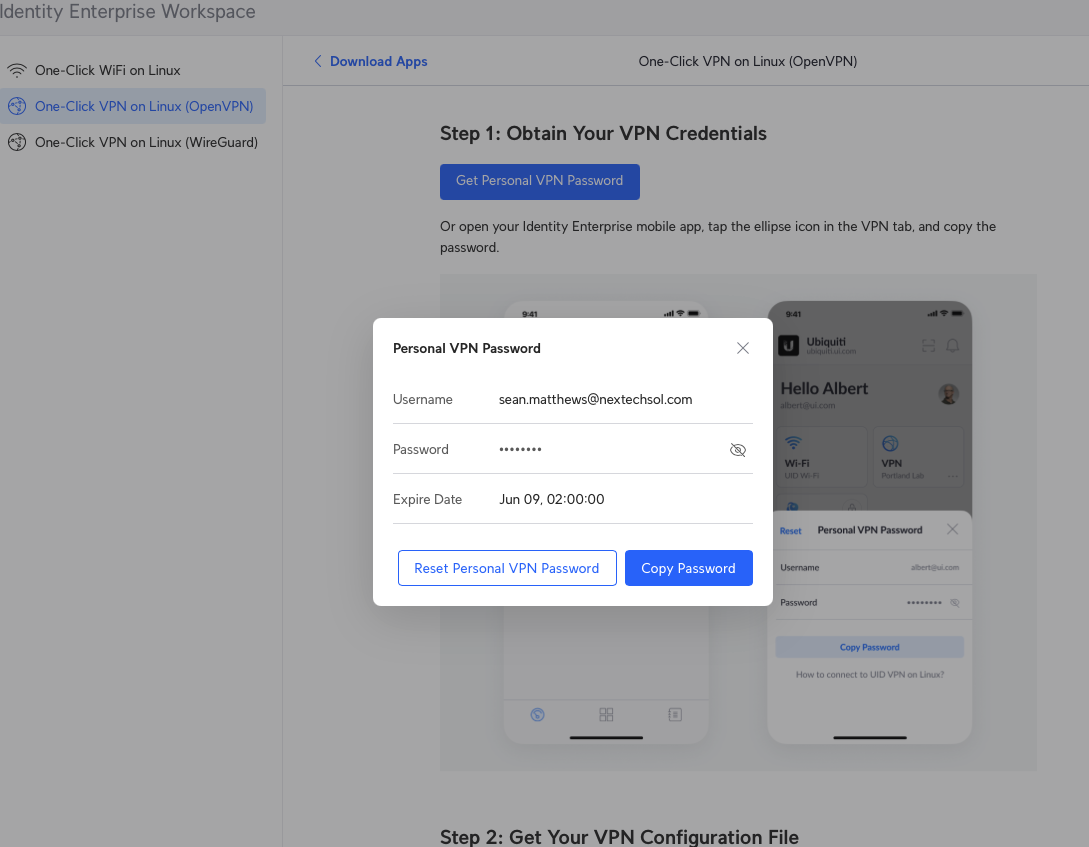 *These instructions are for use with OpenVPN or similar tools. You may also use the one-click VPN tool available in the Ubiquity application.*

Tailscale VPN
There is also a designated Tailscale VPN for dev devices. Contact a RIPS team member for access.
## 🖥️ Mobile Lab Station
The **Mobile Lab Station** is available for anyone to wheel around or remote into to access various software and 3D Modeling/Printing capabilities. **System Specifications:**- 11th Gen i7-1165G7 @ 2.80 GHz
- 32 GB RAM
- NVIDIA GeForce RTX 2060
- Windows 11 Pro
- Full Licenesed Microsoft Office Suit
- Autodesk Fusion 360
- CHITUBOX Basic (for Phrozen 3D printers)
- Bambu Studio (for Bambu Labs printers)
- Airtable
- WinTAK
- VS Code
🪟 Windows RDP Instructions:
Use Windows Remote Desktop to access the Mobile Lab Station. If someone is already connected, logging in will disconnect their session — please ask before using it.
-
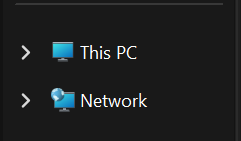
Step 1: Open Windows File Explorer and click on Network.
-
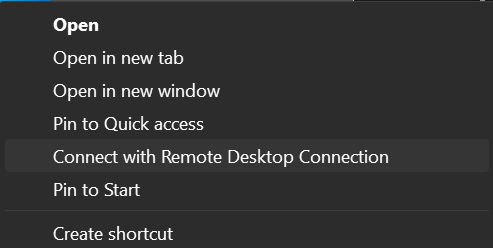
Step 2: Right-click on Mobile-Lab and select Connect with Remote Desktop Connection.
-
Step 3: When prompted, enter your credentials and check Remember Me.
- Username: [email protected]
- Password: You know that password, right?
- DNS Name: Mobile-Lab
- IP Address: 172.32.2.208
- Step 4: Click Connect to begin the session.
🐧 Linux RDP Instructions (Ubuntu + Remmina):
Ubuntu includes Remmina by default – a GUI for RDP/VNC/SSH connections.
- Step 1: Open the Remmina application (press
Superkey and type “Remmina”). - Step 2: Click the
+icon to create a new connection. - Step 3: Set the following values:
- Protocol: RDP
- Server:
Mobile-Labor172.32.2.208 - Username:
[email protected] - Password: (You know it)
- Optional: Check Save password and Auto start session
- Step 4: Save and double-click the connection to begin.
If you do not have Remmina installed, use:
sudo apt install remmina## 👨🏭 Training at MSC Pinewood
We offer a variety of training programs at MSC Pinewood, including operational training for logistics and support roles, as well as specialized programs in UAS systems, RF spectrum analysis, and more. Please reach out to a RIPS Team Member if assistance is needed.**🛫 Important Information about sUAS Operations:**
>> The licensed sUAS operator for RIPS is Sean Matthews. Please contact him for any assistance, waiver submissions, or sUAS planning.
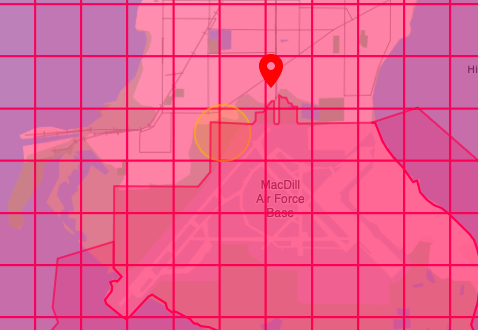
>> Pinewood is a restricted flight area that falls under the MacDill AFB ATC. Flights in the area without ATC approval are a violation of federal law.
>> Additionally, flights conducted by any organization are considered "commercial" flights and require a licensed sUAS pilot to oversee the operation.
**🔫 Training Conducted Around the Pinewood Facility:**

Training that is going to be conducted in and around the Pinewood facility that involves personal moving around the common areas in a manner that could be construed as suspicious activities (IE: With rubber rifles) will require a one-hour notification
Notification Emails:
Additionally, training area warning signs must be placed where they are clearly visible to onlookers. The signs and lights, provided by NTS, are located in the lab.
Ensure all notifications and proper signage are in place before conducting training at Pinewood.
## 🖨️ 3D Printer Information
Most of these printers can be accessed on the HEO network. For details on how to access and use these printers, please contact the RIPS team.
Printer Name: Ultimaker S5
Printer Control Access: Ultimaker Digital Factory
Username: [email protected]
Password: PineWood12!@
Slicer: Cura
Slicer Access: Download or use the 3D Printer Laptop
RTSP Stream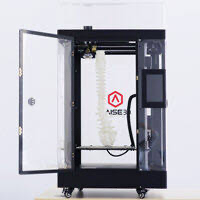
Printer Name: Raise 3D N2 Plus
Printer Control Access: Raise3D Cloud
Username: [email protected]
Password: PineWood12!@
Slicer: Use Raise Cloud
Slicer Access: Use Raise Cloud
RTSP Stream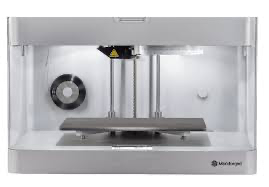
Printer Name: Markforged Mark 2
Printer Control Access: Eiger.io
Username: [email protected]
Password: PineWood12!@
Slicer: Eiger
Slicer Access: Download or use Eiger
RTSP Stream
Printer Name: Phrozen Mega 8k #1
Printer Control Access: CHITUBOX
Slicer: CHITUBOX
Slicer Access: Download or use the 3D Printer Laptop
Network Sending: Slice model with CHITUBOX, then click network sharing to send to the printer
RTSP Stream
Printer Name: Phrozen Mega 8k #2
Printer Control Access: CHITUBOX
Slicer: CHITUBOX
Slicer Access: Download or use the 3D Printer Laptop
Network Sending: Slice model with CHITUBOX, then click network sharing to send to the printer
RTSP Stream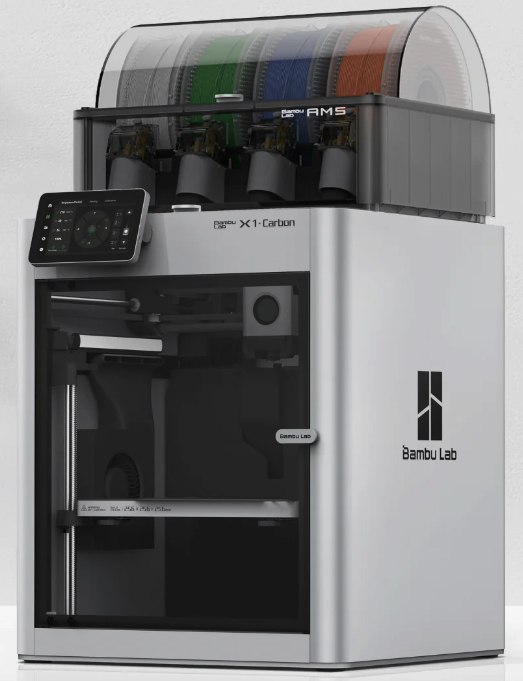
Printer Name: Bambo Labs X1 Carbon #1
Printer Control Access: Bamboo Studio
Slicer: Bamboo Studio
Slicer Access: Download or use the 3D Printer Laptop
Network Sending: Use Bamboo Studio
RTSP StreamYbor Mission Support Center (MSC) Information
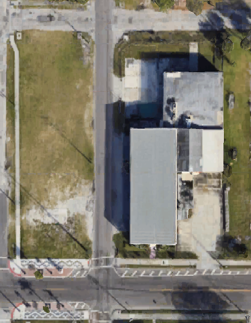
2608 E 7th Ave, Tampa FL
MSC Ybor has a large network of sensors and cameras that are established in MSC Ybor. There are also several organizations that use the TampaVerse space and are available for supporting events.
## 🤖 TampaVerse Training Center POC
For Research & Innovation Platform support, please reach out to the following Point of Contact (POC):
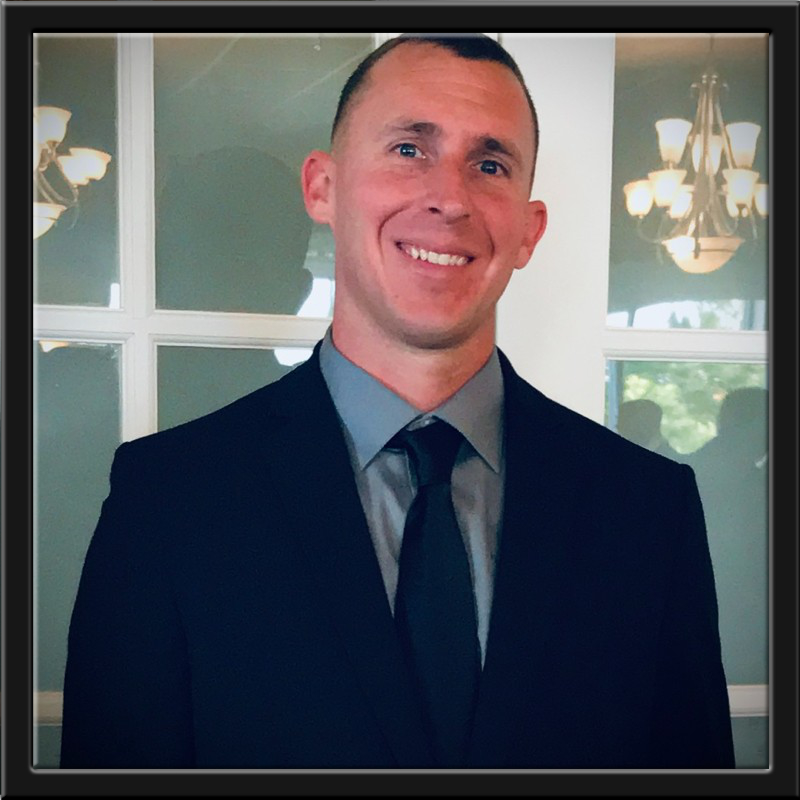
🤖 Sean Matthews
Technical Program Manager
Email: [email protected]
Phone: 813-370-1979
Signal: @Sean18.33

## 📷 Cameras and Sensors
For detailed information about the cameras and sensors installed at the Ybor Mission Support Center, please refer to the document below:
ffplay -rtsp_transport tcp -i rtsp://dev.imagery.jatf-dev.org:8554/MODEL_MACADDRHERE